
Introduction
With SBC/X-pos version 7.3 or later, Leica SpiderQC can be integrated into Leica’s GNSS Web applications.
This integration enables users to easily access and visualise information about the quality of files in the X-pos data repository, and therefore the overall status of X-pos sites, in SBC.
This page summarises the steps to activate the automatic quality check of X-pos files and make the output available in SBC. This can be done together with the plots of GNSS Spider RT Positioning Products (Connect... NMEA/Spider RT Positioning), or using GNSS Spider PP Positioning Products (Connect... Spider PP Positioning). It is also possible to plot the overall accuracy of the network in terms of global residual error (RMS), ionosphere and troposphere using the so-called Network Online Visualisation of Accuracy (NOVA) maps (Connect… Spider Network Server).
Software Requirements
The following software products must be installed in order to configure the quality check of X-pos files and their output via SBC:
-
Leica X-pos v7.3 or later;
-
Leica Spider Business Center v7.3 or later;
-
Leica SpiderQC v7.3 or later.
Please note that:
-
The Leica SpiderQC and Leica X-pos server must be installed on the same server, in order for the described setup to work properly.
-
The Leica SBC Central, Identity and Proxy Server components can be installed on a different machine.
-
The X-pos file repository can be a local folder or a remote network drive (with or without authentication).
-
No IIS or other configuration is needed for the X-pos machine, since X-pos serves as an HTTP server for the SBC menu items.
Once all of the above-mentioned software products have been successfully installed, the following steps must be followed.
Setup of the Automatic RINEX Quality Check on Leica SpiderQC
Open the Leica SpiderQC GUI.
Automate > Edit Sites
Click on the new button “From X-pos” to import sites from the X-pos database:
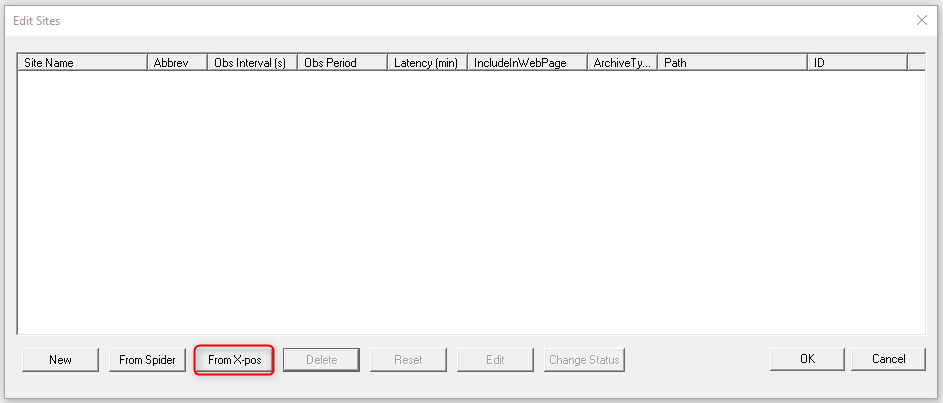
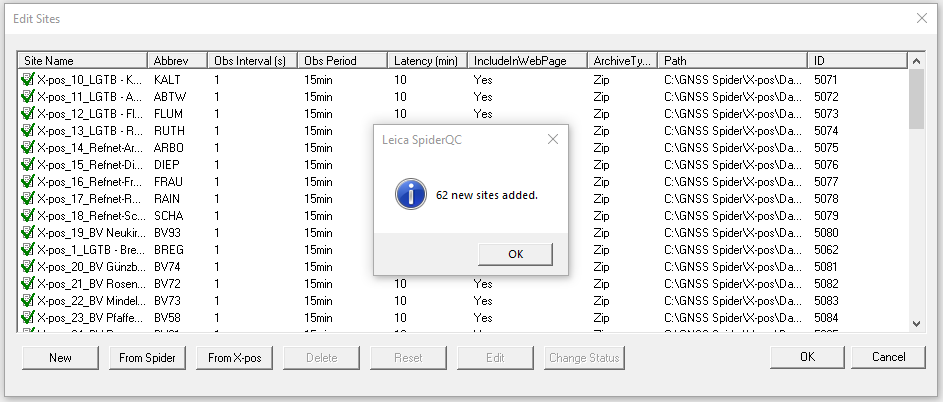
(The maximum allowed number of active sites depends on the license options purchased.)
Please note that this functionality only imports data once, so any future changes to X-pos sites will not be automatically reflected in Leica SpiderQC. For example, if a site is added or removed from the X-pos database or any configuration changes are made, the import from X-pos must be repeated to update the site information in Leica SpiderQC.
Edit > Settings
To enable the automatic RINEX Quality Check and display its results on dedicated web pages, set the following parameters:
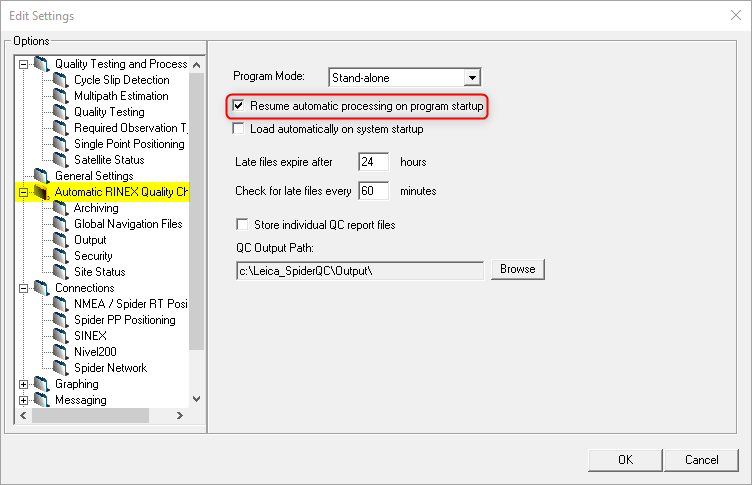
(Please note that the QC output path, which is used when Leica SpiderQC is used as a normal desktop application, should be a local file location to which the user has write access.)
Enable “Resume automatic processing on program startup”.
Optionally, enable “Store individual QC report files”. This will store the corresponding files in the X-pos repository when Leica SpiderQC is operating in “Integrated Mode” with X-pos and in the “QC Output Path” otherwise. Note that the “QC output path”, which is used when Leica SpiderQC is used as a normal desktop application, should be a local file location where the user has “write” privileges.
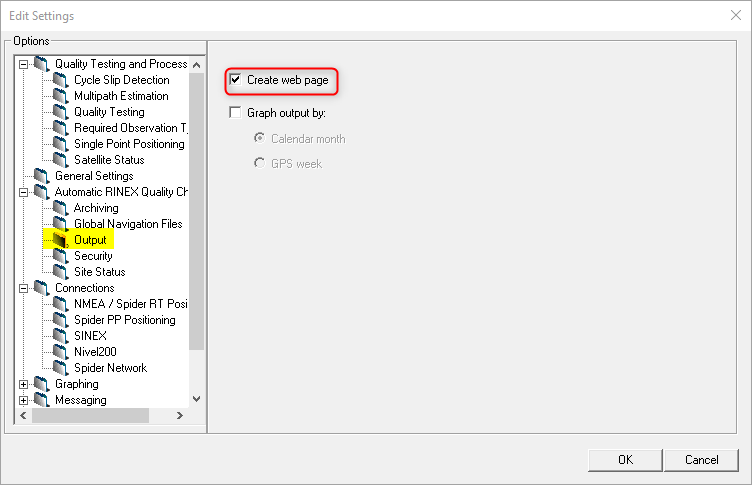
Enable “Create web page”.
Setup of the Network Online Visualisation of Accuracy (NOVA) maps on Leica SpiderQC
Open the Leica SpiderQC GUI.
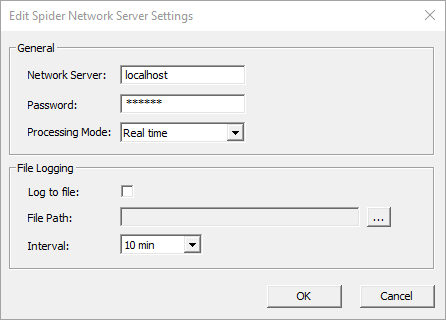
Enter the hostname/IP address and Spider Network Server password in the Edit > Edit Spider Network Server Settings dialog.
Connect to the Spider Network Server via the Connect... Spider Network Server menu.
(OPTIONAL) Settings for the Network Quality Plots in Leica SpiderQC
To obtain information about the coordinate displacements of sites or the further quality indicators of the network, the related parameters can be set in the Edit > Settings > Connections sub-menus of Leica SpiderQC. This is not mandatory, and the type of plots to be visualised can be customised.
For example:
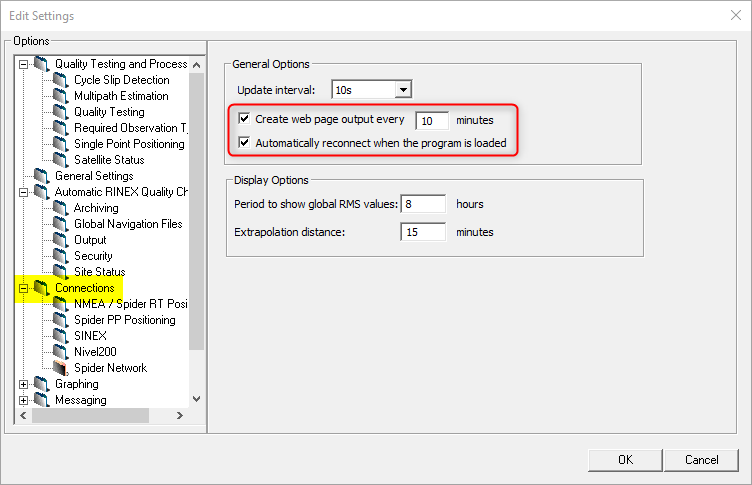
These options can be activated or deactivated as required.
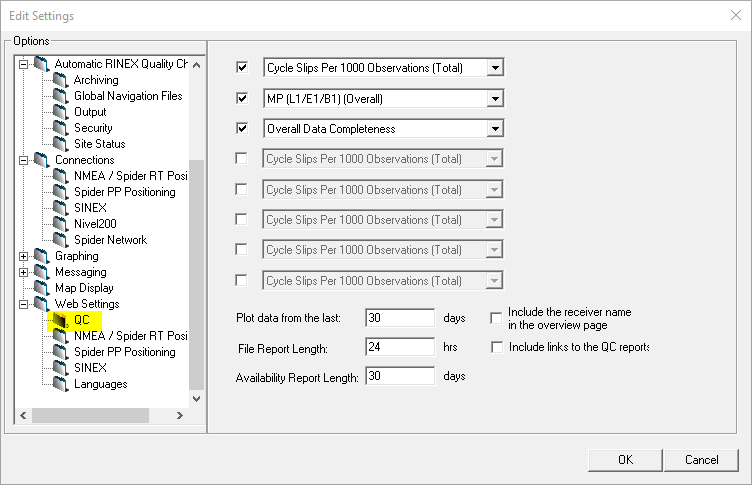
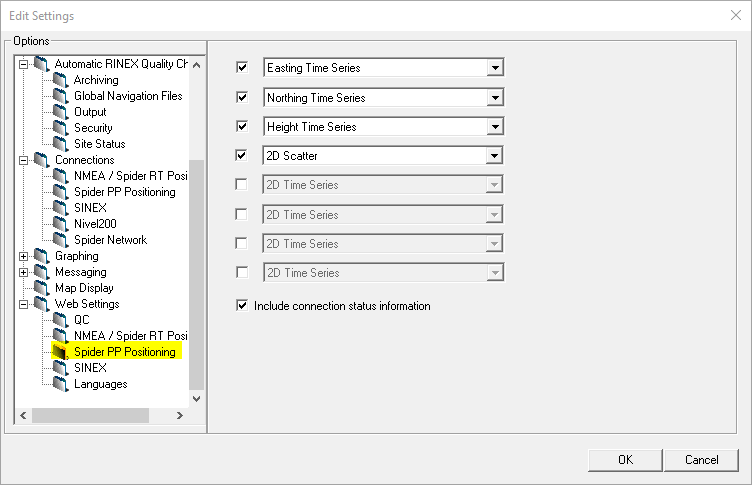
Other customisable preferences, such as the plots to be displayed and the supported languages, can be set in the Web Settings section.
For example:
Exit from Leica SpiderQC Desktop
Close Leica SpiderQC GUI once all parameters have been set according to the desired output.
After following the instructions in the following paragraphs, X-pos will automatically launch Leica SpiderQC and its Automatic Processing in the background.
X-pos Configuration on SBC for the Integration of Leica SpiderQC
Once the Leica X-pos and Leica SBC v7.3 or higher software has been installed, the X-pos service can be configured to automatically start the Leica SpiderQC v7.3 or higher software in the background. This makes quality information about the X-pos sites available in the Leica SBC software.
SBC Portal > Settings > X-pos > General: Toggle the “Enable Leica SpiderQC integration” slider:

and “Save”.
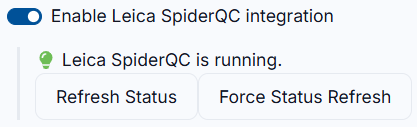
If the integration is successful, the status message “Leica SpiderQC is running” will be displayed, and a new folder called “Uniform” will be created in the X-pos data repository. This folder will contain the output of the Leica SpiderQC analysis.
However, there are situations when the Spider X-pos and SpiderQC integration is not successful, in which case the following events might occur:
|
Event |
Action |
|---|---|
|
Leica SpiderQC integration not enabled. |
Enable the Leica SpiderQC integration to check the quality of the files contained in the X-pos data repository. |
|
Leica SpiderQC not found on the X-pos machine. |
Install the latest released version of Leica SpiderQC on the Spider X-pos machine. |
|
Leica SpiderQC installed on the X-pos machine not compatible with X-pos (Installed Version: {0}). |
Install the latest released version of Leica SpiderQC on the Spider X-pos machine. |
|
Another Leica SpiderQC instance is running on the system, X-pos cannot start Leica SpiderQC. |
To be integrated with Leica Spider X-pos, Leica SpiderQC needs to run as a service. Close possibly opened Leica SpiderQC GUI on the system. |
|
Starting of Leica SpiderQC failed unexpectedly, X-pos will attempt a restart soon. |
Leica SpiderQC could not be started. Reinstall Leica SpiderQC. If the issue persists, proceed with investigation via Support channel. |
|
Leica SpiderQC exited unexpectedly X-pos will attempt a restart soon. |
Leica SpiderQC application has crashed. Proceed with investigation via Support channel. |
|
Leica SpiderQC exited unexpectedly. The maximum number of crashes for today is reached. |
Leica SpiderQC application has crashed more than 5 times and cannot be started as a service anymore for integration with Leica Spider X-pos. Proceed with investigation via Support channel. |
|
Leica SpiderQC is running. |
The Leica SpiderQC integration with Leica Spider X-pos is successful. |
|
SpiderQC will be disabled, due to incompatibility with Cloud Storage Storage. |
SpiderQC is disabled when S3 or Azure Compatible Storage is chosen as X-pos Data Repository. No action is needed. |
IMPORTANT: To ensure that the information in the uniform folder is of a high quality, there is no need to select the “Quality Control Report” checkbox when configuring the X-pos file product on GNSS Spider's Site Server.
SBC Configuration (to display the quality check output)
To make QC output available via SBC, the System Administrator needs to configure customised menu items that point to the HTML content produced by Leica SpiderQC.
This can be done via the SBC Portal by using the Settings > Menu page to configure new customised menu entries.
The following structure should be adopted in the URL field of the menu item to point to specific HTML content:
https://frontendURL/xposServer/qualityChecks/files/web/YY/xxxxxx.htm
Where:
-
FrontendURL is the “Frontend URL” as it is configured in Settings > System > Infrastructure > Services provided by SBC.
-
YY is the language. The Leica SpiderQC offers four options at Edit > Settings > Web Settings > Languages: CN, DE, EN, FR. Web pages will only be available in languages that have been previously activated in the Leica SpiderQC settings.
-
xxxxxx.htm is the specific HTML file that the System Administrator wants to provide.
The following HTMLs are recommended to provide a basic set of information:
-
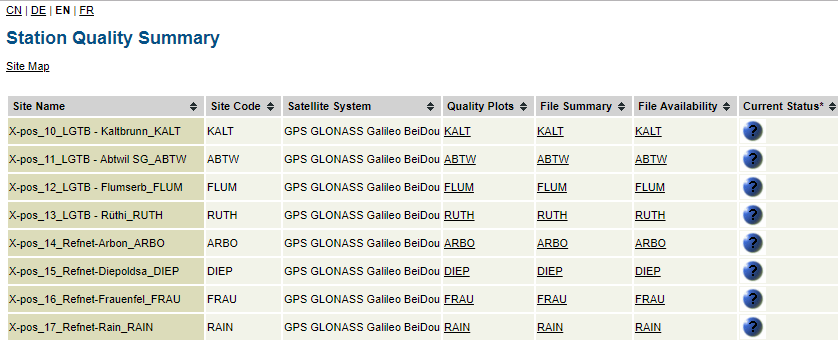
https://frontendURL/xposServer/qualityChecks/files/web/EN/index.htm: It provides the overall station quality information in a table, from which viewers can navigate to specific sites. The language is English.
-
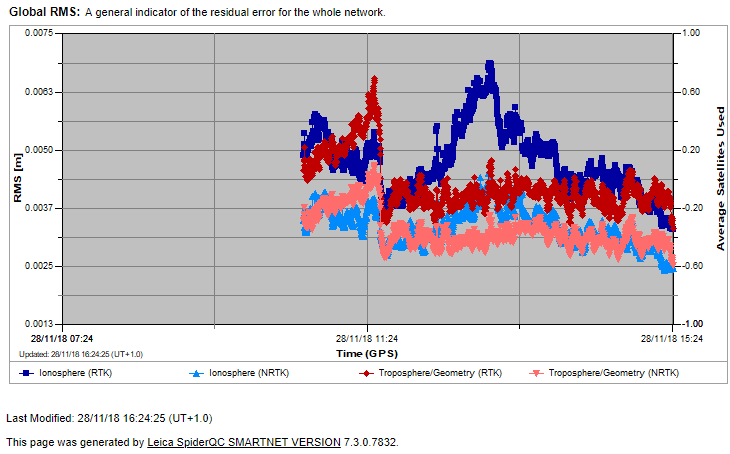
https://frontendURL/xposServer/qualityChecks/files/web/EN/global_rms.htm: It provides the global residual error for the whole network. The language is English.
-
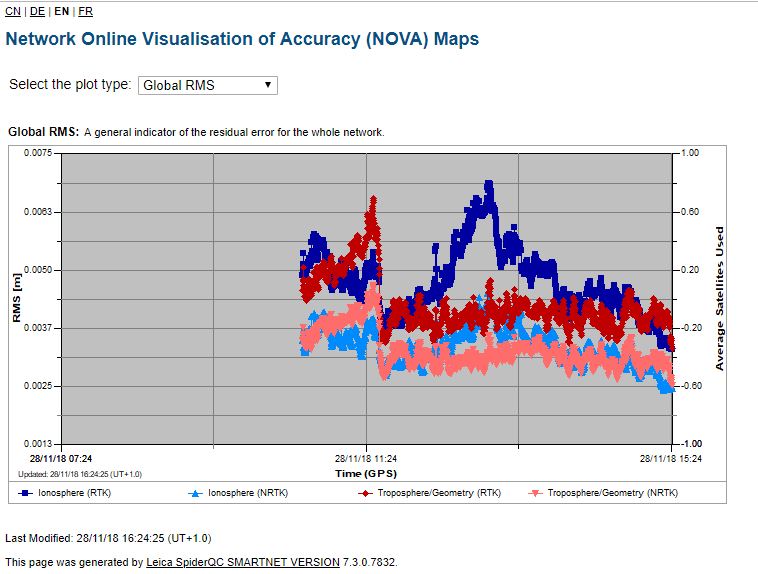
https://frontendURL/xposServer/qualityChecks/files/web/EN/index_network_rtk.htm: It provides NOVA Maps. The language is English. The drop-down menu on the NOVA Maps page allows viewers to choose between Global RMS, Ionosphere and Troposphere.
The following HTMLs provide an overview of quality analysis in the positioning domain:
-
https://frontendURL/xposServer/qualityChecks/files/web/EN
/index_cq_postproc.htm: provides the Post-Processing Positioning overview. -
https://frontendURL/xposServer/qualityChecks/files/web/EN
/index_cq_realtime.htm: provides the Real-Time Positioning overview.
Further customisation is, of course, possible, with different HTMLs pointing to the ones provided by the automatic processing of Leica SpiderQC. When configuring the customised menu entry, System Administrators can decide which privileges the QC outputs will be made available to.