
Purpose
Organisations allow you to structure your user data into several containers and into a hierarchy. This hierarchy defines visibility, Articles access, and relationships between parent and child organisations.
Overview page
The overview displays all organisations in a hierarchical list and provides functions such as filtering, creating, deleting, updating, and viewing organisations.
The displayed information includes the organisation name, hierarchy, level, description, user count, and subscription count, details see below table:
|
Parameter |
Description |
|---|---|
|
Name |
The name of the organisation |
|
Hierarchy |
Shows where the organisation sits in the hierarchy and its parent‑child structure |
|
Level |
The organisation’s level within the hierarchy (e.g., Level 0, Level 1) |
|
Description |
Additional information describing the organisation |
|
Users |
Number of users assigned to the organisation (Note: this is not the sum of all children) |
|
Subscriptions |
Number of subscriptions assigned to the organisation (same logic as the user count) |
Working with the table
Once you have created some organisations and you are also using a hierarchy of organisations, the overview table offers some useful functionality:
-
Sort by Hierarchy
-
Shows a vertical tree view
-
-
Sort by Level
-
Groups organisations horizontally by level
-
-
Hierarchy Column symbols
-

-

-
Organisation Levels
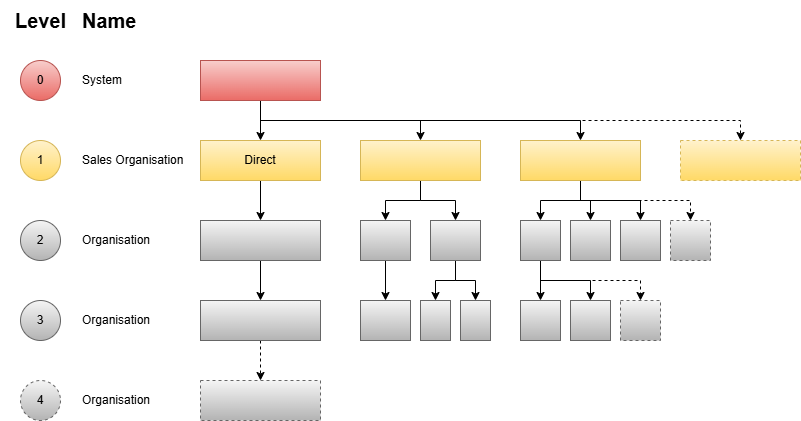
Organisations can be structured at multiple levels. This document uses the following terms:
-
Level 0 – System Root
-
The System Root organisation exists by default and cannot be deleted.
-
Its members are the system-level administrative users who have full access to all user data of all organisations (e.g., System Admin). This is defined by the Role property “Role Type”, which is set to “System“.
-
Users with the role End User cannot be assigned to this organisation.
-
-
Level 1 – Sales Organisations
-
Level 1 organisations will be referred to as Sales Organisations in this documentation to reflect their special characteristics.
-
Its members can have either “Role Type” set to “Sales Org” or “Normal (see Role property).
-
The “Role Type” set to “Sales Org” will give that user elevated permission to perform administrative tasks within that Sales Organisation and all its child organisations.
-
Users with “Role Type” set to “Normal” can be used, e.g., when no further child organisations are used.
-
-
By default one Sales Organisation “Direct” will exist on level 1 and cannot be deleted. All users that newly self-register will be members of this organisation. For a small user base it is sufficient to use this organisation for all users.
-
Each Sales Organisation
-
is stored in separate data storage to protect the user data. Once a user is assigned to a specific Sales Organisation, they can be moved only under strict rules (only by Role Type "System" and no dependencies on Articles etc.)
-
can have a different set of Articles assigned, for which they can create Subscriptions. Higher levels, i.e., their children, will have access to the same articles.
-
can be configured with its own different Corporate Design, so that members see that design after login.
-
-
-
Level >= 2 – Sub-organisations
-
Any organisations defined on the levels 2 and upwards can build a parent-child hierarchy of organisations, with the rule that each organisations can only have one parent.
-
Such organisations can be used, e.g., to organise
-
a network of distribution partners,
-
regional division of governmental structures,
-
branches of a sales organisation,
-
users of large enterprises,
-
groups of users and more.
-
-
Note for users upgrading from SBC versions prior v8.0:
-
Level 2 organisations were called Dealers before.
-
Deeper hierarchy levels (3 and above) were not supported.
-
Level 2 organisations can be used as alternatives to groups.
Organisation Properties
Each organisation can have the following properties defined on the Details tab:
|
Parameter |
Description |
|---|---|
|
Name |
The name of the organisation The Name and Description fields for the default organisations “System Root” and “Direct” are predefined and cannot be changed. |
|
Description |
Additional information describing the organisation The Name and Description fields for the default organisations “System Root” and “Direct” are predefined and cannot be changed. |
|
Parent Organisation |
Select the parent organisation of this organisation to define a hierarchy. This will implicitly define its level. It is not required for the System Root organisation. |
|
Support email |
The organisation's support contact email. When set, all user contact form requests will be sent to this address. |
|
Support hotline |
The organisation's support hotline phone number. This is used only as information. |
Articles
The Articles tab can be used to assign or view the assignment of Articles to the organisation.
For the article assignment the following rules have to be considered:
-
Articles can be assigned only to Sales Organisations (level 1 organisations)
-
The “Direct” organisation is assigned with ‘All products (default)’ by default. This assignment can also be removed manually if not needed.
-
The System Root always has full article access.
-
All organisations at Level 2 and higher inherit their articles from their Level 1 parent (i.e. from their Sales Organisation).
Changing the Parent Organisation
You can move an organisation to another parent, as long as it stays inside the same Sales Organisation (Level‑1 organisation). The organisation must meet all of the following criteria:
-
Must be Level >= 2,
-
Cannot be moved under itself or any of its sub‑organisations,
-
Must stay within the same Level‑1 branch. This keeps article assignments valid and consistent.
Delete Organisation
Deletion of an organisation is possible only if all the following criteria are met:
-
It is not the System Root or the “Direct” Organisation,
-
It has no articles assigned (valid only for level 1),
-
It has no sub-organisations,
-
It has no users assigned.
Corporate Design for Organisations
The tab Corporate Design gives the possibility to customise the design of the SBC web portal user interface (UI), by allowing the creation of one Customized theme in addition to the Default one. The theme defined here will be visible to all users that belong to this Sales Organisation or any of its child organisation. I.e., it will overrule the globally defined design (cf. see here).
After selecting Theme to be “Customized”, you can select the following:
|
Parameter |
Description |
|---|---|
|
Primary logo (light mode) |
Main corporate logo, used on wide screen windows (in light mode) at the top left area of the UI. |
|
Primary logo (dark mode) |
Main corporate logo, used on wide screen windows (in dark mode) at the top left area of the UI. |
|
Submark logo (light mode) |
Simplified version of the corporate logo - ideally square, used on narrow screen windows (in light mode) at the top left area of the UI. |
|
Submark logo (dark mode) |
Simplified version of the corporate logo - ideally square, used on narrow screen windows (in dark mode) at the top left area of the UI. |